Tax & Surcharge
Admins and finance-aware managers who maintain tax and surcharge rules used by the POS.
Before you start
- Confirm the correct brand.
- Confirm you have brand-level modify access.
- Confirm the
Takeawaytable type is configured for the brand. - Confirm whether you are creating tax logic, service charge logic, or another surcharge.
- Verify the expected rate and shop rollout before saving.
Open this page
Open POS Settings -> Tax & Surcharge.
What this page controls
This page defines automatic or manual financial additions used on orders.
Use it to manage:
- tax entries
- surcharge entries
- calculation order
- auto-calculate behavior
- per-shop activation
These definitions are created at brand level and then enabled per shop.
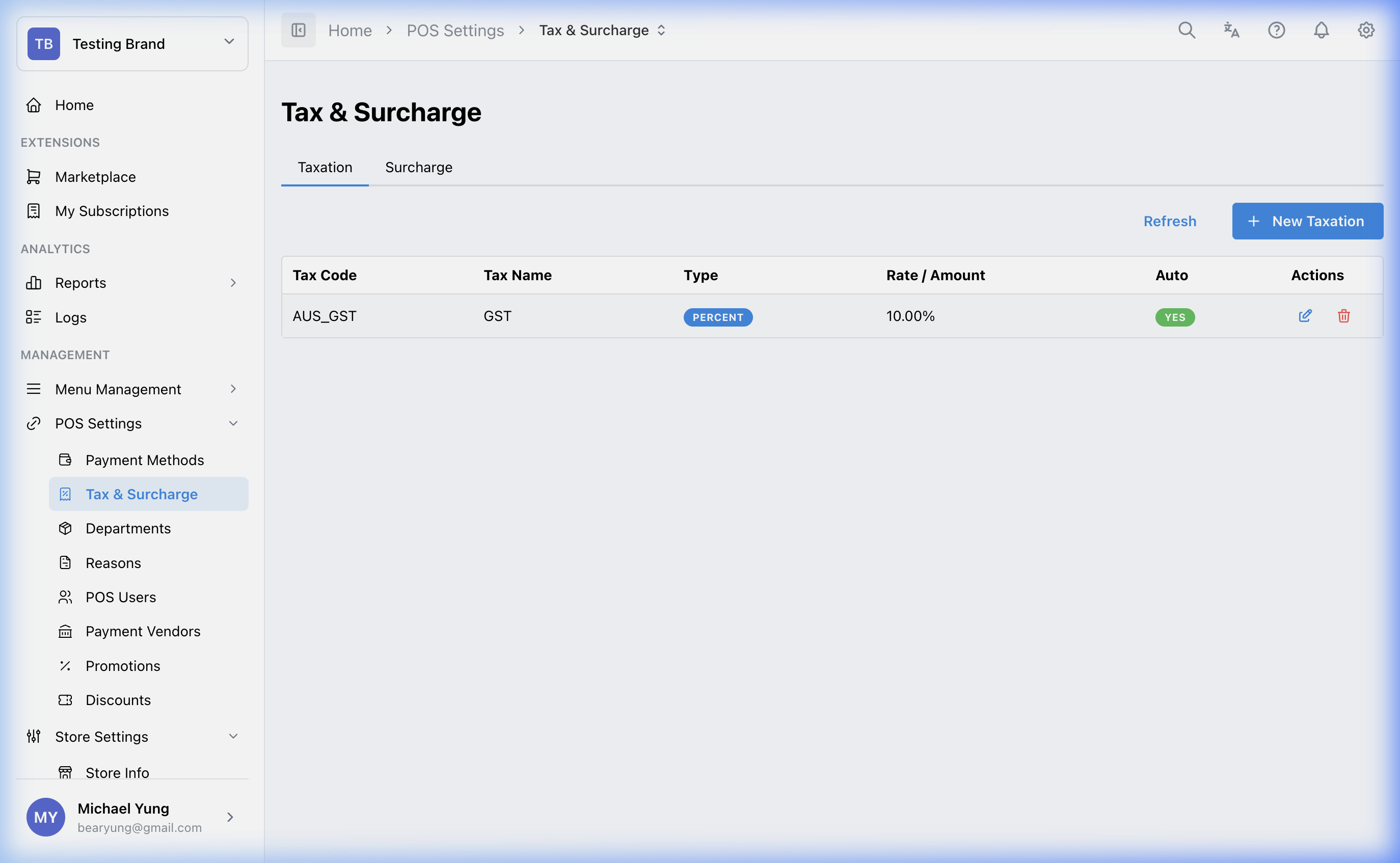
Main sections
Shared fields
| Field | What it controls | When to change it |
|---|---|---|
Code and Name | Internal identity and receipt label | When you add or rename a rule |
Priority | Order of calculation | When more than one rule can apply |
Fixed Amount vs percentage | Whether the rule is flat or percentage-based | When the business rule requires one model or the other |
Amount or percentage value | The actual charge value | When the business rate changes |
Calculation modifiers
Auto Calculate: applies the rule automatically when enabledOpen Amount: prompts the user for a value instead of using one fixed amount
Shop settings
Use the shop settings area to enable the rule only for the shops that should apply it.
Restore a recently removed tax or surcharge
Use Show recently removed on the relevant list when a tax or surcharge rule was removed by mistake.
- The
Taxationlist and theSurchargelist each have their own recently removed toggle. - The toggle only shows taxations or surcharges removed in the last 24 hours. Records removed longer ago are not included.
- Recently removed rows use a light gray background.
- A recently removed row only shows the restore action. The edit and delete actions are hidden.
- Select the restore icon to make the taxation or surcharge active again.
- HQ blocks the restore if another active taxation or surcharge already has the same
CodeorName.
Takeaway service charges
This brand-level setting affects all tables using the Takeaway table type across the selected brand. It is separate from each surcharge rule's shop settings. You need brand-level modify access to save it.
- Select
Surcharge. - Find
Takeaway orders. - Click
Editto unlock the checkbox. - Select or clear
Skip service charge for takeaway tables. - Click
Confirm and save. ClickCancelto discard the change.
The checkbox is locked again after saving. Changing the checkbox alone does not save it. During a new brand's guided setup, the service-charge step also offers this choice, selected by default. Adding a shop to an existing brand preserves the brand's current choice.
After saving, POS devices receive the setting through their normal cloud-to-local background sync. For a POS that has not completed initial setup, the Data Synchronization page appears at startup: choose the sync days, select Sync, wait for Completed. Click to login, and select it to continue. An already-initialized POS does not show that page; allow its background sync to complete instead. Then load or update an active, non-return takeaway order: when selected, the POS clears its service charge; when cleared, normal configured service-charge rules apply. Completed orders and refund reversals keep their original charges. Other table types retain their existing behavior.
Needed file: takeaway_service_charge_settings.png
Steps
- Open
POS Settings->Tax & Surcharge. - Create or open the target tax or surcharge rule.
- Enter the
CodeandName. - Set the calculation
Priority. - Choose fixed amount or percentage.
- Enter the value.
- Turn
Auto CalculateorOpen Amounton only if required. - Enable the rule for the target shops.
- Save the rule.
- If you removed a tax or surcharge rule by mistake, turn on
Show recently removedin the relevant list. - Find the light gray row and select the restore icon.
- If HQ blocks the restore, review any active taxation or surcharge with the same
CodeorNamebefore trying again.
What changes after you save
Saving the rule updates the brand-level definition. The rule only affects the shops where it is enabled.
How to check your change
- Reopen the rule and confirm the saved values.
- Confirm the intended shops are enabled.
- Verify the result in the target POS calculation flow or receipt output when practical.
If something goes wrong
- Confirm the issue is not caused by shop enablement.
- Check
Priorityif multiple rules are interacting unexpectedly. - Review whether the rule should be automatic or manual before changing the rate itself.
- If restore is blocked, check whether another active taxation or surcharge is using the same
CodeorName. - If the takeaway setting cannot load, select
Refreshand confirm the correct brand and connection. - If saving fails, retry after confirming brand-level modify access. If HQ reports that the Takeaway table type is not configured, ask an admin to configure it first.
- If POS still shows the old behavior, first allow its background settings sync to complete. If it has not completed initial setup, use
Data Synchronization, select the sync days andSync, wait forCompleted. Click to login, select it, and then reload the active takeaway order.
When to ask owner/admin
- The change affects legal tax handling or customer-facing surcharges.
- You are unsure about calculation order between multiple rules.
- The change affects multiple shops and you cannot verify all of them safely.