Discounts
Admins who create manual markdown options for cashier or manager use on the POS.
Before you start
- Confirm the correct brand.
- Decide whether the discount should be manual. If it should apply automatically, review Promotions instead.
- Confirm whether the discount applies to the whole check, a single item, or a custom amount entered at the POS.
Open this page
Open POS Settings -> Discounts.
What this page controls
Discounts defines the manual markdown options available during POS operations.
Use this page to control:
- fixed or percentage discounts
- whole-check versus item-level discounts
- open discounts
- rule-based eligibility for discount use
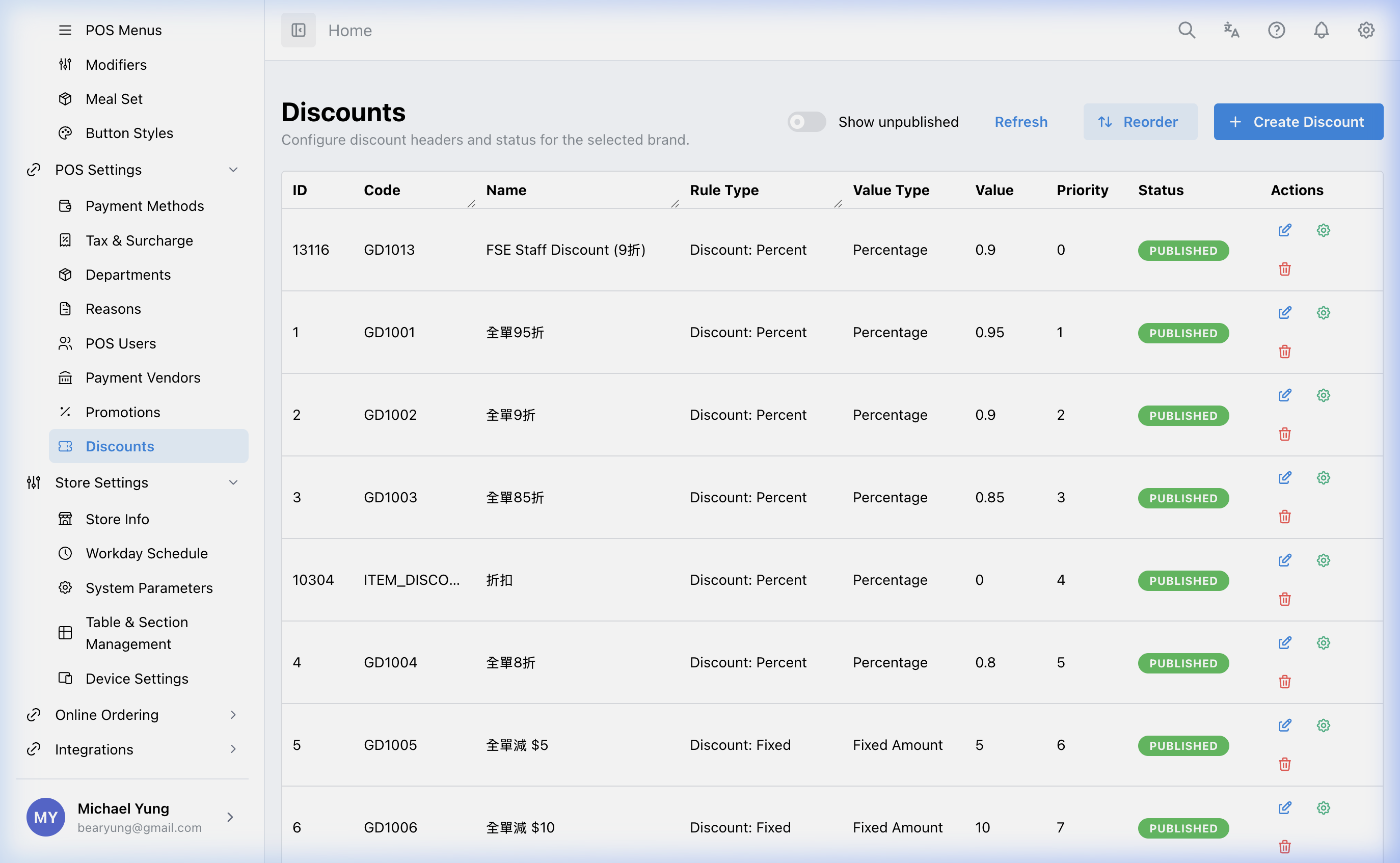
Main sections
Value type
The rule editor uses these value choices:
Discount: FixedDiscount: PercentDiscount: OpenDiscount: Fixed ItemDiscount: Percent ItemDiscount: Upgrade Item
For Discount: Percent and Discount: Percent Item, Discount Percent is a retained-price multiplier, not the percentage written as a whole number. For example, a 10% discount (9 折) is 0.90. Enter a value from 0 inclusive to less than 1.
Rule type
Use the item variants when the discount is evaluated against item-level rules. In the rule editor, Applied On Item Level has three effective states:
- For bill-level types (
Discount: Fixed,Discount: Percent,Discount: Open), the saved value is not used; the rule applies at bill level. - For item-level types, off applies the rule to all eligible matching items.
- For item-level types, on applies the rule to the selected item.
Rule editor
As with promotions, the shell record is only part of the setup. Use the rule editor to define what the discount can apply to.
Steps
- Open
POS Settings->Discounts. - Create a new discount or open an existing one.
- Choose the value type.
- Choose the rule type.
- Save the shell record.
- Open the rule editor.
- If using a percentage rule, enter the retained-price multiplier in
Discount Percent. - Set
Applied On Item Levelwhen the item-level rule should apply only to the selected item; leave it off when it should apply to all eligible matching items. - Define the allowed items, categories, or cart requirements.
- Save the discount.
What changes after you save
These changes affect the manual discount options available during POS operations.
How to check your change
- Reopen the discount and confirm the type and value.
- Confirm a percentage value is a multiplier such as
0.90, not10for a 10% discount. - Review the rule editor setup and the
Applied On Item Levelsetting. - Test the intended discount flow in the POS where practical.
If something goes wrong
- Confirm the rule editor was configured after the shell record was saved.
- Check whether the issue is in rule scope rather than discount value.
- Review whether the discount should be bill-level or item-level, and whether
Applied On Item Levelis set correctly.
Needed file: hq/menu-catalog/discount-percent-multiplier.png
When to ask owner/admin
- The discount affects live pricing or approval policy.
- You are unsure whether the logic should be a discount or a promotion.